 Free resource · Print production
Print-ready artwork checklist for designers
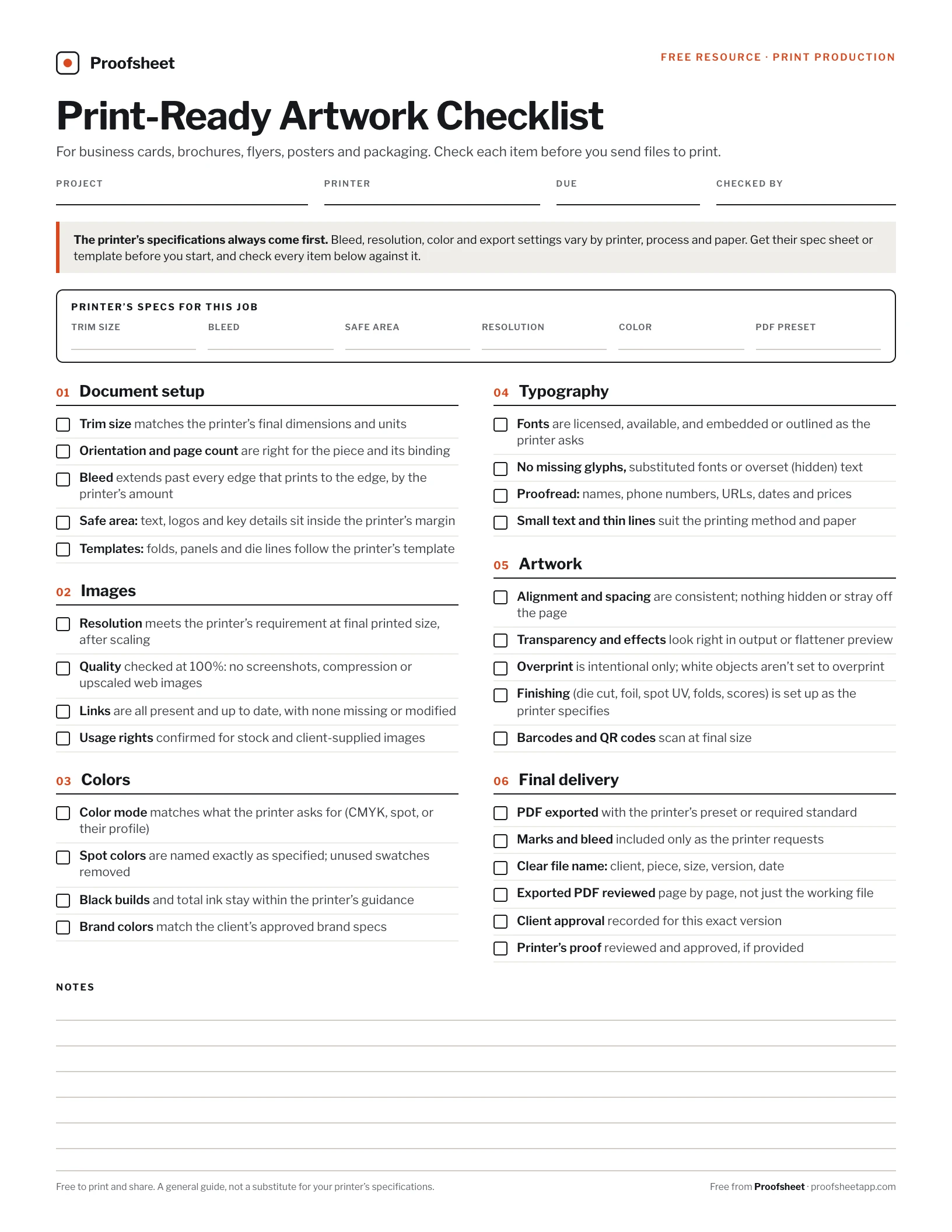
Six areas to check before any file goes to print, from business cards and flyers to brochures, posters and packaging. Use it on this page, or download the one-page PDF to print or fill in on screen.
Download the free PDFFree · 1 page · fillable · no email required
The printer’s specifications always come first
Bleed, resolution, color and export settings vary by printer, process and paper, so this checklist doesn’t give one-size-fits-all numbers. Get the printer’s spec sheet or template first, write their values down, and check every item against them.
- Trim size
- Bleed
- Safe area
- Resolution
- Color
- PDF preset
Document setup
Get the size, bleed and margins right before anything else.
The finished size after cutting. Confirm the units too: a 3.5 × 2 in card and an 85 × 55 mm card are different jobs.
Booklets and brochures have to fit how they’re folded and bound. Saddle-stitched booklets, for example, need a page count in multiples of four.
Bleed is artwork that runs past the trim, so no thin white edge shows if the cut shifts slightly. Printers set different amounts, so use theirs.
Cutting and folding are never perfectly exact. Keeping important content inside the printer’s safe margin protects it from being trimmed or lost in a fold.
Folded pieces, packaging and die-cut shapes depend on exact panel sizes. Building on the printer’s own template avoids panels that are slightly off.
Images
Check every image at the size it will print.
What counts is the effective resolution at the printed size. Scaling an image up lowers it, so check the image as placed against the value the printer asks for.
A file can meet the number and still look poor. Zoom to 100% to catch compression artifacts, soft upscaling and screenshots.
Missing or outdated links can print as low-resolution previews or old versions. Update them before you export.
Confirm the license covers print use and the print run, and that client-supplied photos are theirs to use.
Colors
Match the printer’s color requirements and the client’s brand.
Many printers want CMYK, but some ask for a specific color profile and others convert files themselves. Follow their instructions rather than a general rule.
A spot color’s name tells the press which ink to use. Duplicate or misnamed swatches can create extra plates or the wrong ink.
Large black areas often use a mix of inks, while small text usually prints best in a single black. Printers set limits for total ink, so use the values they recommend.
Check color values against the client’s approved brand specs, not against what looks right on screen.
Typography
Fonts, characters and the words themselves.
Missing fonts are one of the most common reasons files get held at the printer. Embed or outline them as the printer prefers, and check the license allows it.
Look for highlighted missing characters, substituted fonts and overset text boxes that quietly hide words.
The costly mistakes are usually the small ones. Read them once more in the exported PDF.
Very small type, hairline rules and light text on dark backgrounds can fill in or break up depending on the press and paper. Ask the printer for their minimums.
Artwork
Effects, overprints and finishing that only show up on press.
Look for stray objects on the pasteboard, hidden layers and elements nudged slightly out of place.
Shadows, blending modes and transparency can print differently than they appear. Your design app’s output or separations preview shows what will actually print.
An object set to overprint prints on top of what’s beneath it instead of knocking it out. On a white object, that can make it disappear entirely.
Die lines, foil, spot UV and folds are usually set up on their own layer or as a named spot color, but each printer has its own conventions.
Print a test at actual size and scan it with a phone. Check where the code leads, too.
Final delivery
Export, name and approve the exact file that prints.
Printers often specify an export preset or a PDF/X standard. Use theirs instead of a general high-quality setting.
Some printers want crop marks and bleed in the file; others add their own. Include exactly what they ask for.
A name like Acme_Flyer_8.5x11_v3_2026-03-04.pdf tells everyone what the file is and which version it is.
Some problems only show up in the export: flattened effects, substituted fonts, missing pages. Check the file you’re actually sending.
Make sure the version going to print is the one the client approved, and keep a record of when they approved it.
When the printer sends a hard or digital proof, check it carefully and approve it in writing before the full run.
Take the checklist with you
All six sections on one page, with space for the printer’s specs and your notes. Print it, or tick it off on screen.
Download the free PDFFree · 1 page · fillable · no email required
Keep every print job organized
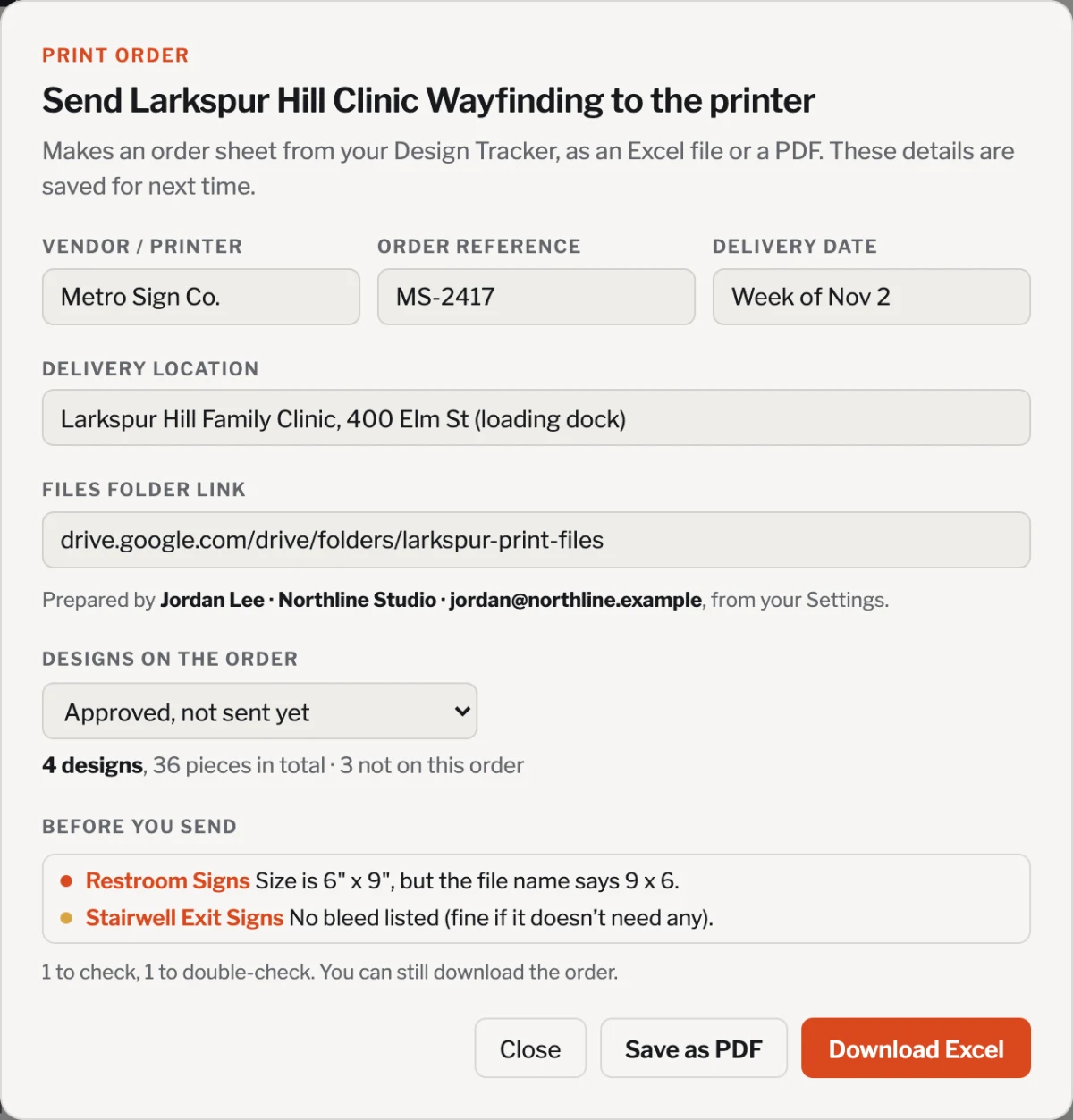
Proofsheet keeps each design’s specs, file link and client approval together in one project, and turns them into a print order sheet for your printer.
Questions
Why doesn’t this checklist give a standard bleed size or resolution?
Because there isn’t one that’s right for every job. Bleed, resolution, color and export settings depend on the printer, the printing method and the paper. The checklist has a space for the printer’s own values at the top, and every item is checked against them.
Is the checklist really free?
Yes. There’s no account and no email required. The PDF is free to print and share.
Can I fill in the PDF on screen?
Yes. The checkboxes and blanks work in Adobe Acrobat Reader, Apple Preview and most browsers, and the page still prints normally. To keep your entries, download the PDF and save it from a PDF app.
What’s the difference between a client proof and a printer’s proof?
A client proof is the design you send your client to approve. A printer’s proof comes from the printer after they’ve processed your file, as a printed sample or a PDF, and shows how the job will actually print. Not every job includes one, but when it does, check it as carefully as your own file.
Should I outline fonts or embed them?
It depends on the printer. Many accept PDFs with embedded fonts; some ask for outlined text, especially for packaging or large-format work. Check what they prefer, and make sure the font license allows it either way.